Author: Utsav Acharya Sharma

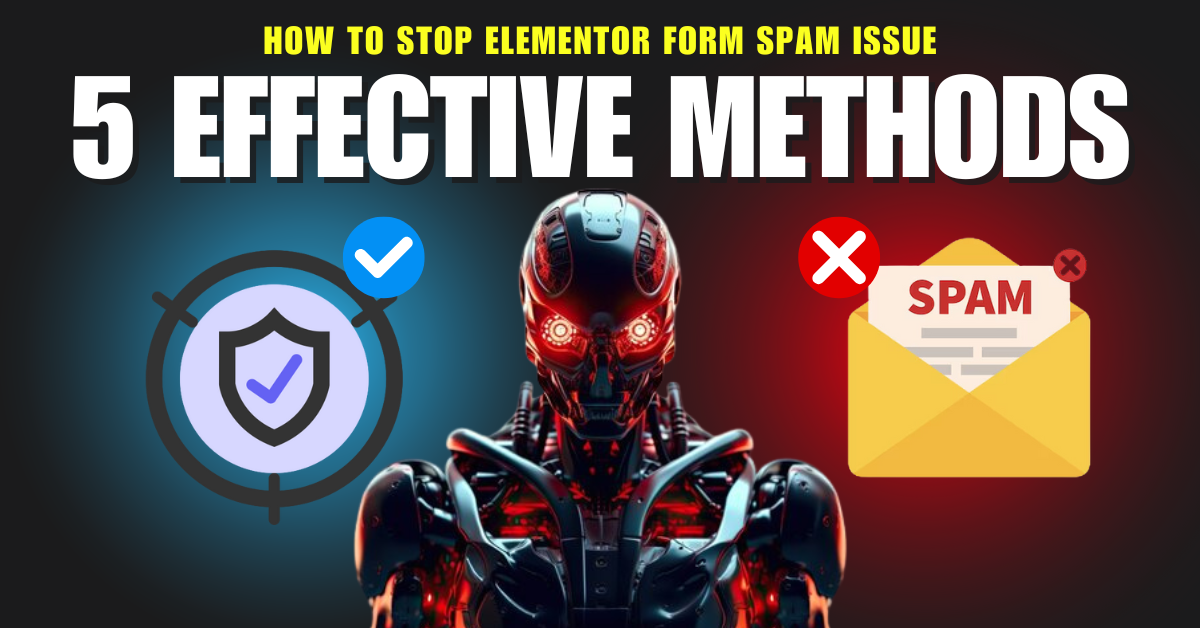
  • How to Stop Elementor Form Spam: 5 Effective Methods

    How to Stop Elementor Form Spam: 5 Effective Methods

    Elementor forms are a fantastic way to collect user information on your WordPress site, but they can also attract unwanted spam emails. Spammers often use automated software to find vulnerable forms online, flooding your inbox with unsolicited messages. To combat this, it’s crucial to implement effective spam protection measures. Here are five easy methods to help stop spam submissions via your Elementor forms.

    Table of Contents

    1. Why Do Elementor Forms Receive Spam Emails?
    2. Method 1: Honeypot Protection
    3. Method 2: Adding a Maths Question
    4. Method 3: Using Google reCAPTCHA
    5. Method 4: Clean Talk WordPress Plugin
    6. Method 5: Using FREE Cloudflare for SPAM Protection
    7. Wrapping Up

    Why Do Elementor Forms Receive Spam Emails?

    Elementor forms are effective for collecting user information, but they can also be targets for spammers. These individuals exploit the lack of security measures on public forms, allowing them to send unsolicited messages to your contact information. This vulnerability underscores the importance of implementing robust spam protection for Elementor forms.

    Method 1: Honeypot Protection

    Honeypot protection is a security measure designed to protect websites from malicious activity. It works by adding a hidden form field that is only visible to bots but not to human users. If a bot fills out this hidden field, it can be detected and blocked from accessing the website.

    How to Add Honeypot to Reduce Elementor Spam

    To create a Honeypot in your Elementor form, open the type dropdown in the Elementor form settings and select Honeypot. This will add a hidden field, activating the protection. For enhanced security, consider adding multiple honeypot fields.

    Pros of Honeypot Protection:

    • Early Detection: Detects threats before they reach critical systems.
    • Deception: Distracts attackers from valuable targets.
    • Increased Security: Improves overall security by drawing attention away from production systems.

    Cons of Honeypot Protection:

    • Resource Intensive: Can consume significant resources.
    • Limited Effectiveness: Should be used alongside other security measures.

    Method 2: Adding a Maths Question

    Adding a simple math question to your Elementor forms can effectively prevent spam submissions. By requiring users to solve a basic math problem, you ensure that submissions come from human visitors, as automated bots typically cannot solve these questions.

    How to Add a Maths Question in Elementor Forms

    To implement this method, select the Number field in your Elementor form, and change the label to a simple math problem. For example, use “5 + 8” and set the minimum and maximum values for validation to 13.

    Pros of Adding a Maths Question:

    • Improved Security: Prevents automated spam submissions.
    • Easy to Implement: Quick setup with minimal maintenance.
    • Low-Cost Solution: A simple, cost-effective way to combat spam.

    Cons of Adding a Maths Question:

    • Not 100% Effective: Advanced bots may still bypass this measure.
    • Accessibility Issues: Users with visual impairments may struggle.
    • User Frustration: Some users may find these questions annoying.

    Method 3: Using Google reCAPTCHA

    Google reCAPTCHA is a free service designed to protect websites from malicious traffic. It ensures that only legitimate users can access your site and services, effectively blocking automated software that tries to exploit your forms.

    Different Versions of Google reCAPTCHA:

    • reCAPTCHA v2: The classic version with a checkbox for user verification.
    • reCAPTCHA v3: An invisible version that analyzes user behavior in the background.
    • reCAPTCHA for Android: Tailored for Android applications.
    • reCAPTCHA Enterprise: Offers custom solutions for large-scale organizations.

    Pros of Google reCAPTCHA:

    • Improved Security: Blocks bots and automated scripts.
    • User-Friendly: Designed to be intuitive for users.
    • Customizable: Offers various versions to suit different needs.
    • Widely Adopted: Trusted by millions of websites.

    Cons of Google reCAPTCHA:

    • Costly: Some versions may incur charges.
    • Privacy Concerns: May collect user data, raising privacy issues.

    Method 4: Clean Talk WordPress Plugin

    The Clean Talk WordPress Plugin provides a powerful security solution to protect against spam, malware, and brute-force attacks. It uses advanced algorithms to detect and block malicious activities and provides real-time reports for monitoring.

    How to Enable Clean Talk WordPress Plugin

    Download the plugin from the official repository, activate it, and set the API key to start combating spam effectively.

    Pros of Clean Talk Plugin:

    • Spam Bots Registration Filter: Blocks spam registrations.
    • Low False Positive Rate: Minimizes the risk of false alerts.
    • Easy Setup: User-friendly interface for quick configuration.

    Cons of Clean Talk Plugin:

    • Costly for High Traffic: Premium versions can become expensive for sites with high traffic.

    Method 5: Using FREE Cloudflare for SPAM Protection

    Cloudflare offers a comprehensive spam protection service designed to guard websites against unsolicited emails and attacks. Its advanced security technologies protect from various threats, including phishing and DDoS attacks.

    Pros of Cloudflare Spam Protections:

    • Increased Security: Blocks malicious traffic and enhances overall security.
    • Easy Setup: No technical expertise required.
    • Cost-Effective: Affordable alternative to other solutions.

    Cons of Cloudflare Spam Protections:

    • Limited Customization: May not meet the specific needs of some websites.
    • Dependency on Third-Party Service: Potential risks associated with relying on an external service.
    • Impact on Load Times: Blocking unwanted traffic may affect load times, particularly for distant users.

    To wrap up, preventing spam in your Elementor forms is vital for maintaining your website’s security and keeping your inbox free from unwanted messages. Implementing the methods discussed above can help you quickly block spammers, allowing you to focus on what truly matters.

    With five effective methods at your disposal, you can choose the one that best fits your needs. While Google reCAPTCHA is widely trusted, Clean Talk and Cloudflare offer strong alternatives, especially for those concerned about privacy. By taking these steps, you can ensure your Elementor contact forms remain clean and secure.
  • Enhancing WordPress with React

    Enhancing WordPress with React

    Both WordPress and React have become essential tools in my web development toolkit. With WordPress, I’ve built everything from simple static sites to complex, dynamic websites, thanks to its intuitive, content-focused CMS that caters to users at all skill levels. At the same time, React, the popular JavaScript library, has transformed how I approach front-end development, allowing me to create highly interactive and engaging user interfaces. Now, imagine bringing these two together—WordPress for content management and React for a seamless, dynamic frontend. It truly offers the best of both worlds.

    Table of content

    1. Why use React with WordPress.
    2. How to Combine WordPress and React?
    3. Fetching WordPress Data with the REST API
    4. Using WPGraphQL with React
    5. Key Challenges and Considerations
    6. Performance Optimization Tips

    Why Use React with WordPress?

    Combining WordPress with React allows you to leverage the strengths of both technologies. WordPress provides an easy-to-use backend for managing content, while React delivers a faster, more interactive user experience on the frontend. Whether you’re building a blog, an e-commerce site, or something more complex, this combination provides a flexible, scalable solution that enhances performance and functionality.

    Ways to Integrate WordPress and React

    Headless WordPress

    In a headless WordPress setup, WordPress serves as the backend CMS, and React manages the frontend. You can use the WordPress REST API or WPGraphQL to fetch content from WordPress, which React then renders on the frontend. This approach gives you full control over the UI while keeping the content management simple and familiar with WordPress.

    React in WordPress Themes

    If decoupling WordPress and React entirely seems too complex, you can still integrate React into your WordPress themes. By embedding React components directly into your PHP templates, you can enhance specific parts of your site with React’s interactivity while keeping the traditional WordPress structure.

    Fetching WordPress Data with the REST API

    One of the most straightforward ways to connect WordPress and React is through the WordPress REST API. With React, you can use tools like Axios or the Fetch API to retrieve data such as posts, pages, or custom fields from WordPress and display them dynamically in your React components. This setup creates a more responsive and modern user experience.

    Using WPGraphQL with React

    WPGraphQL is another great option for integrating WordPress and React. It allows you to query WordPress data using GraphQL, which is more efficient than traditional REST API calls. With WPGraphQL, you can fetch exactly the data you need, improving performance and reducing load times. This makes your React-based frontend even faster and more responsive.

    Key Challenges and Considerations

    While combining WordPress with React offers plenty of benefits, there are some challenges to consider:

    • SEO: React’s client-side rendering can impact SEO. Using a framework like Next.js for server-side rendering can help make your content more search-engine friendly.
    • Security: Properly securing API endpoints and managing authentication is critical when working with a decoupled setup.
    • Performance: While React is fast, making sure your API calls are optimized is crucial to maintain high performance, especially for large-scale websites.

    Performance Optimization Tips

    • Use lazy loading for components to ensure only the necessary parts of the site load initially.
    • Cache API calls and reduce the number of data requests to improve load times.
    • Consider server-side rendering with frameworks like Next.js for better performance and SEO optimization.

    By combining WordPress with React, you unlock the potential to build more dynamic, efficient, and engaging websites. Whether you choose a headless setup or simply incorporate React into your WordPress themes, this combination gives you greater flexibility and a powerful toolset to enhance your projects. The end result is a fast, modern website with a great content management system behind it.

  • Exploring WordPress 6.6: What’s New and Exciting

    Exploring WordPress 6.6: What’s New and Exciting

    WordPress has always been a dynamic platform, continuously evolving to meet the needs of its vast user base. The latest major update, WordPress 6.6, is no exception, bringing a sack of new features and improvements designed to enhance creativity, usability, and efficiency. Whether you’re a casual blogger or a seasoned developer, there’s something in this update for everyone. Let’s dive into what’s new in WordPress 6.6 and how it can benefit your site.

    Table of Content

    1) The Basics

    2) Streamlined Site Editor Experience

    3) Unified Publishing Flow

    4) Custom Content with Synced Patterns

    5) Automatic Plugin Rollbacks

    6) New Design Elements

    7) Enhanced Block Bindings API

    8) Conclusion

    The Basics

    WordPress 6.6 is already rolling out on WordPress.com, and many of you might have already seen these new features in action. For those running their own WordPress installations, this update will soon be available. Remember, if you encounter any issues, WordPress.com’s expert Happiness Engineers are just a message away.

    Streamlined Site Editor Experience

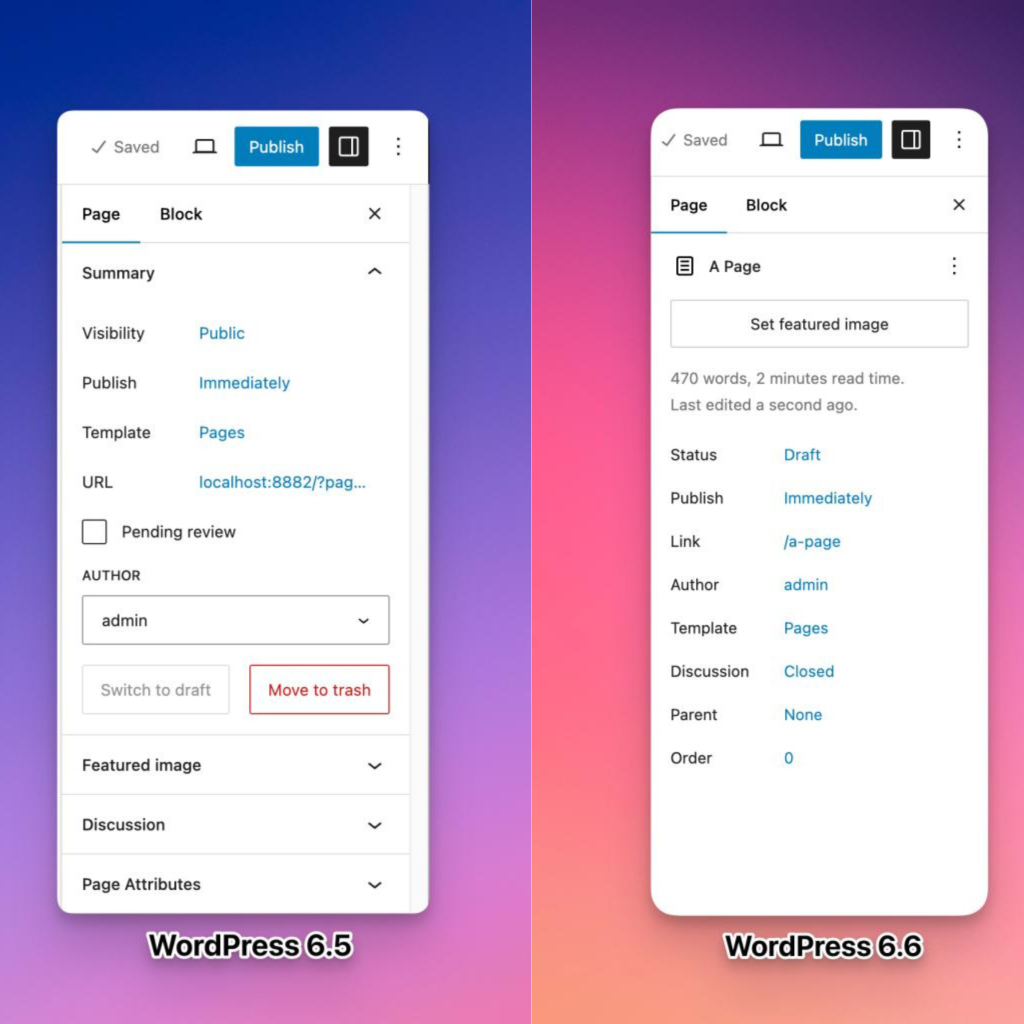
    The Site Editor has undergone a significant overhaul in recent releases, and WordPress 6.6 takes this further by introducing a more intuitive side-by-side layout for editing pages. This new view improves navigation, making it easier to manage and edit your content. The integration of pattern management is also smoother, reducing the number of clicks needed to access your desired tools and settings. Additionally, enhancements in keyboard navigation and bulk editing actions contribute to a more efficient workflow.

    Unified Publishing Flow

    Gone are the days of juggling between different interfaces for publishing posts and managing site content. WordPress 6.6 unifies the publishing flow, making interactions between different site elements much smoother. The updated layout now features more prominent displays for titles, publishing status, and featured images. For developers, this means an easier process for extending the editor, as both the post/page editor and Site Editor now share the same extensibility APIs. This not only streamlines development but also opens the door for more plugins to enhance your editing experience.

    Custom Content with Synced Patterns

    One of the most exciting new features is the ability to override synced patterns with custom content. This means you can now modify specific blocks within a pattern, such as changing the text or colors of a button CTA, while keeping the overall design consistent. You can enable these overrides from the “Advanced” section of various blocks like Paragraph, Heading, Buttons, and Image, with plans to expand this feature in the future.

    Automatic Plugin Rollbacks

    Plugin management just got a lot more reliable with automatic rollbacks. Previously, a failed plugin update could leave your site broken or parts of it non-functional. With WordPress 6.6, if an update fails, the plugin will automatically revert to its previous version, ensuring your site remains operational while you troubleshoot the issue.

    New Design Elements

    WordPress 6.6 introduces several new customization options to help you craft a visually appealing site:

    • Site Background Image: You can now set a site-wide background image with customizable size, position, and repetition options, allowing for a more personalized visual impact.
    • Negative Margins: For more precise design control, you can now set negative margins for any block. This feature facilitates overlapping elements and creative layouts, though negative values must be entered manually.
    • Grid Support: The new Grid and Grid Layout blocks let you create professional-looking grids for various types of content. The “Auto” option ensures responsive design, while the “Manual” option offers detailed control over rows and columns.
    • Custom Shadow Styles: From the Styles menu, you can now edit and create custom shadow styles for images, buttons, and more, giving you greater flexibility in your design.
    • Section-Specific Styles: Theme developers will appreciate the ability to define style variations for specific site sections, such as headers or footers. This feature requires editing the theme’s theme.json file but provides a powerful way to customize different parts of your site.

    Enhanced Block Bindings API

    The Block Bindings API, introduced in WordPress 6.5, has been upgraded for greater ease of use. This API allows you to connect the content of a block to custom field data. In WordPress 6.6, you can now update custom field data directly from the block editor, streamlining content management and making it easier to maintain data consistency across your site.

    Conclusion

    WordPress 6.6 is packed with features that enhance usability, creativity, and efficiency. Whether you’re looking to simplify your editing process, customize your site’s design, or ensure the reliability of your plugins, this update offers valuable tools and improvements. As always, keep an eye on the WordPress blog for more updates and tips, and happy WordPressing!

  • A Peek Into My Website Building Process

    A Peek Into My Website Building Process

    Hello, I’m Utsav Acharya Sharma, and I’m here to take you on a journey through my process of crafting awesome websites. At Majestic Technology, I’m the guy who brings digital dreams to life, using a mix of WordPress, HTML, CSS, JavaScript, and PHP. So, buckle up as I spill the beans on how I make it all happen!

    1) Introduction

    2) How I build websites

    a. Picking the perfect theme

    b. Adding Handy Plugins

    c. Crafting Killer Pages

    d. Personal Touch with Custom Templates

    e. Making it mobile friendly

    f. Polishing and Testing

    3) Conclusion

    Let’s start with a quick intro. I’m all about building websites that not only look great but also perform like a charm. My weapon of choice? WordPress, of course! But I don’t stop there. I sprinkle in some HTML, CSS, JavaScript, and PHP to add that extra oomph. At Majestic Technology, I’ve had the pleasure of working on some exciting projects, turning ideas into stunning online realities.

    It all begins with choosing the right theme. I spend hours scouring through options, making sure it not only looks good but also loads fast and meets the client’s needs. After all, a slow website is a big no-no in today’s fast-paced world.

    Plugins are like little helpers that make a website shine. Whether it’s boosting SEO or beefing up security, I handpick plugins tailored to each project. It’s all about finding that sweet spot between features and performance.

    Here’s where the fun begins! Using tools like Elementor, I bring designs to life, pixel by pixel. Every element, every section is carefully placed to create a seamless user experience. It’s all about making sure visitors stick around and explore what the site has to offer.

    No cookie-cutter websites here! I dive deep into custom templates, headers, and footers, injecting each with personality and functionality. It’s all about making sure the website reflects the brand’s unique vibe.

    In today’s world, your website needs to look good on any device. That’s why I spend time tweaking and optimizing for all screen sizes. Whether you’re on a phone, tablet, or desktop, the experience remains top-notch.

    Before I hit that “publish” button, I run through a rigorous checklist. From optimizing performance to squashing pesky bugs, I leave no stone unturned. Because let’s face it, nobody likes a website that’s slow or glitchy.

    And there you have it – my website building journey in a nutshell! From concept to execution, I pour my heart and soul into every project. It’s all about creating digital experiences that wow and delight. So, if you ever need a website that not only looks good but also performs like a champ, you know who to call. Here’s to many more digital adventures ahead!