Tag: nepal

  • WordPress vs Squarespace – Which Platform is Right for You?

    WordPress vs Squarespace – Which Platform is Right for You?

    Table of Contents:

    1. Introduction
    2. WordPress vs Squarespace: A Brief Overview
    3. Ease of Use
    4. Design and Customization
    5. Features and Functionality
    6. SEO and Marketing Tools
    7. E-commerce Capabilities
    8. Customer Support
    9. Which Platform is Best for You?
    10. Conclusion

    1. Introduction

    When it comes to building a website, two names often dominate the conversation: WordPress and Squarespace. Both platforms have earned their reputation for allowing users to create beautiful and functional websites, but they cater to different types of users with unique needs. Whether you’re a tech-savvy developer or a creative entrepreneur looking for simplicity, this comparison of WordPress vs Squarespace will help you decide which platform suits your project best.


    2. WordPress vs Squarespace: A Brief Overview

    Before we dive into the details, here’s a quick snapshot of both platforms:

    • WordPress: It’s the most popular content management system (CMS) in the world, powering around 43% of all websites. It’s open-source, highly flexible, and supports endless customization. With thousands of themes and plugins, WordPress offers complete control over every aspect of your site.
    • Squarespace: Known for its sleek designs and user-friendly interface, Squarespace is a website builder that simplifies the process of creating and maintaining a website. It’s an all-in-one solution that handles hosting, templates, and maintenance, making it perfect for users who prioritize convenience and ease of use.

    3. Ease of Use

    One of the first things to consider when choosing a platform is ease of use. If you’re new to building websites or want to save time, this factor could heavily influence your choice.

    • WordPress: While incredibly powerful, WordPress comes with a learning curve. You need to set up hosting, install themes, and manage plugins. Even though its flexibility is one of its greatest strengths, it requires more hands-on management. For those unfamiliar with coding or web development, it can be challenging at first.
    • Squarespace: With its drag-and-drop functionality and intuitive interface, Squarespace is built for simplicity. Everything is hosted and maintained by Squarespace, so there’s no need to worry about technical details like security, updates, or server management. The platform is perfect for users who want to get their site up and running quickly without dealing with complex settings.

    Verdict: If you prefer convenience and want a smooth, beginner-friendly experience, Squarespace wins. If you value control and customization, WordPress is the better option, but be prepared for a steeper learning curve.


    4. Design and Customization

    The design of your website is crucial to its success, especially if you want to stand out from the competition.

    • WordPress: Offering thousands of free and premium themes, WordPress provides endless possibilities for customization. For users with coding skills (or a willingness to learn), the sky’s the limit. You can build your website exactly the way you want, with complete control over layouts, fonts, and colors. WordPress also allows you to switch themes whenever you want, without losing content.
    • Squarespace: While not as customizable as WordPress, Squarespace is known for its stunning, professionally designed templates. These templates are responsive, meaning they automatically adjust to look great on mobile devices. Squarespace’s design editor is straightforward, allowing users to make visual changes without touching code. However, for users who need highly unique designs, Squarespace’s limitations might feel restrictive.

    Verdict: If you’re a designer or developer who needs full creative control, WordPress is the better choice. For those who want a polished, professional look without much effort, Squarespace provides elegant design solutions.


    5. Features and Functionality

    A website’s functionality can be just as important as its design, depending on the purpose of your site. Do you need advanced features, or will the basics suffice?

    • WordPress: With over 50,000 plugins, WordPress can be expanded to offer virtually any functionality you can imagine. Whether you need an online store, membership site, portfolio, or forum, there’s a plugin for it. WordPress also supports custom code, which allows for complete flexibility. However, more plugins can mean more potential conflicts and maintenance work.
    • Squarespace: Squarespace comes with built-in features that cover most users’ needs. You don’t need to install plugins to add functionality—everything from blogging to analytics and e-commerce is included in the platform. However, if you need advanced or highly specialized features, you might find Squarespace’s offerings limited.

    Verdict: For limitless features and functionality, WordPress leads the pack. For users who need standard website features with minimal setup, Squarespace keeps things simple and streamlined.


    6. SEO and Marketing Tools

    Your website’s visibility on search engines is vital for driving traffic and growing your online presence.

    • WordPress: With WordPress, SEO is entirely in your hands. Plugins like Yoast SEO and All in One SEO help optimize your content, but WordPress also allows you to configure technical SEO elements like metadata, permalinks, and XML sitemaps. It’s ideal for users who want full control over their SEO strategy.
    • Squarespace: Squarespace includes basic SEO tools that are easy to use. You can edit page titles, descriptions, and URLs, and the platform automatically generates sitemaps and clean URLs. While it covers the essentials, users looking for more advanced SEO features may feel restricted compared to WordPress.

    Verdict: WordPress is the superior choice for users who need detailed control over SEO, while Squarespace provides a more beginner-friendly approach to optimization that’s sufficient for most users.


    7. E-commerce Capabilities

    For those looking to sell products or services online, both platforms offer e-commerce solutions, but with different levels of complexity.

    • WordPress: Through the WooCommerce plugin, WordPress becomes a powerful e-commerce platform. WooCommerce is highly customizable, allowing users to control every aspect of their online store, from product variations to payment gateways. It’s an excellent option for large or complex e-commerce sites, but requires more setup and maintenance.
    • Squarespace: Squarespace includes e-commerce functionality in its plans, making it easy to set up an online store. While not as flexible as WooCommerce, it’s great for small businesses or those with simpler needs. The platform handles everything from product listings to payment processing with minimal configuration required.

    Verdict: If you need a full-featured, scalable e-commerce solution, WordPress with WooCommerce is the best choice. Squarespace, while easier to use, is better suited for smaller stores with straightforward needs.


    8. Customer Support

    The availability of customer support can make a significant difference, especially if you run into issues while building or maintaining your site.

    • WordPress: WordPress doesn’t have dedicated customer support, but it boasts a large and active community. Forums, tutorials, and developer resources are abundant, but you may have to spend time searching for answers or hire a developer for more complex issues.
    • Squarespace: Squarespace offers 24/7 customer support through live chat and email. This can be a lifesaver for beginners who might need quick assistance. The platform’s help center also includes a library of tutorials and guides.

    Verdict: Squarespace’s direct support options are a huge plus for beginners, whereas WordPress relies on community-based resources.


    9. Which Platform is Best for You?

    In the end, the choice between WordPress and Squarespace depends on your needs and priorities.

    • WordPress is ideal for users who want complete control over every aspect of their website. It’s best suited for those who don’t mind getting their hands dirty and can dedicate time to learning the platform’s ins and outs.
    • Squarespace is perfect for individuals or small businesses that prioritize simplicity and elegance. Its ease of use, combined with stunning design templates, makes it an excellent choice for those who want to get a professional website up quickly without worrying about technical details.

    10. Conclusion

    Both WordPress and Squarespace offer powerful website-building tools, but they cater to different types of users. WordPress provides unmatched customization and functionality for those willing to invest time and effort into building the perfect site. Squarespace, on the other hand, shines in its ease of use, offering beautifully designed templates and a seamless user experience. By understanding your own needs whether it’s design flexibility, ease of use, or advanced features you can make the right decision and build a website that meets your goals.
  • WordPress vs. Wix: Which is Better for Your Website?

    WordPress vs. Wix: Which is Better for Your Website?

    Creating a website is essential for individuals and businesses looking to establish an online presence. WordPress and Wix are two of the most popular platforms among the many website builders available. But which one is right for you? This blog will compare WordPress and Wix, exploring their strengths, and weaknesses, and which platform suits different needs.

    Table of Contents

    1. Introduction
    2. Overview of WordPress
    3. Overview of Wix
    4. Ease of Use
    5. Design and Customization
    6. Flexibility and Features
    7. SEO Capabilities
    8. E-commerce Options
    9. Pricing
    10. Support and Community
    11. Performance and Security
    12. WordPress Pros and Cons
    13. Wix Pros and Cons
    14. Which Platform Should You Choose?
    15. Conclusion

    Introduction

    WordPress and Wix are leading platforms that cater to different audiences. WordPress is a powerful Content Management System (CMS) that offers great flexibility and control, while Wix is a user-friendly website builder designed for beginners and those who want a quick, easy setup.

    Overview of WordPress

    WordPress is an open-source CMS that powers over 40% of all websites globally. It offers extensive customization options, plugins, and themes, making it suitable for anything from blogs to complex e-commerce stores. Key Features of WordPress are:

    • Fully customizable with thousands of plugins and themes.
    • Great for SEO with extensive plugins like Yoast SEO.
    • Self-hosted (WordPress.org) and hosted (WordPress.com) options.

    Overview of Wix

    Wix is a drag-and-drop website builder known for its simplicity and ease of use. It’s ideal for those who need a quick setup without diving deep into coding or technical details. Key Features for Wix are:

    • Easy drag-and-drop interface.
    • Over 800 designer-made templates.
    • Built-in hosting and domain registration.

    Ease of Use

    • WordPress:

    WordPress has a steeper learning curve but offers more control. Beginners may find it challenging initially, but it becomes manageable with time, especially with the help of page builders like Elementor.

    • Wix:

    Wix is beginner-friendly, requiring no coding skills. Its drag-and-drop interface allows users to design their website visually, making it perfect for those without technical expertise.

    Design and Customization

    • WordPress:

    WordPress provides thousands of themes and customization options, making it perfect for those who want a unique look. Developers can create custom designs using HTML, CSS, and JavaScript.

    • Wix:

    Wix offers many pre-designed templates that are easy to customize. However, once a template is chosen, switching to another design later can be cumbersome.

    Flexibility and Features

    • WordPress:

    WordPress wins in flexibility, offering countless plugins that add various functionalities like e-commerce, social media integration, SEO tools, and more.

    • Wix:

    Wix has a growing app market but is more limited compared to WordPress. It’s suitable for basic to moderate needs but can fall short for highly customized or complex sites.

    SEO Capabilities

    • WordPress:

    WordPress is known for its superior SEO capabilities, thanks to plugins like Yoast SEO and the ability to edit meta tags, URLs, and site structure

    • Wix:

    Wix has improved its SEO tools significantly, offering features like SEO Wiz. However, it still lacks the depth of SEO customization found in WordPress.

    E-commerce Options

    • WordPress:

    WordPress supports robust e-commerce capabilities through plugins like WooCommerce, providing complete control over your online store.

    • Wix:

    Wix’s e-commerce features are easy to use and great for small to medium-sized stores but lack the scalability and advanced features of WooCommerce.

    Pricing

    • WordPress:

    Costs can vary depending on hosting, themes, and plugins. WordPress can be economical, but premium themes, plugins, and managed hosting can add up.

    • Wix:

    Wix offers a range of pricing plans, including free options with Wix branding. Premium plans range from basic personal sites to full-scale e-commerce solutions.

    Support and Community

    • WordPress:

    With a large community, extensive documentation, and forums, WordPress offers numerous support channels. However, official support depends on the hosting provider

    • Wix:

    Wix provides dedicated support, including chat, email, and phone options, along with an extensive help center.

    Performance and Security

    • WordPress:

    Performance depends on hosting quality and site optimization. Security requires plugins, regular updates, and monitoring, making it more hands-on.

    • Wix:

    Wix manages performance and security on its servers, providing automatic updates, SSL certificates, and site backups.

    WordPress Pros and Cons

    Pros:

    • Highly customizable and flexible.
    • Vast plugin ecosystem.
    • Strong SEO capabilities.


    Cons:

    • Steeper learning curve.
    • Maintenance and updates required.
    • Hosting costs can vary.

    Wix Pros and Cons

    Pros:

    • Extremely user-friendly.
    • All-in-one solution with hosting and domain.
    • Great for small businesses and personal websites.

    Cons:

    • Limited customization compared to WordPress.
    • Less control over SEO.
    • Switching templates is difficult.

    Which Platform Should You Choose?

    Choose WordPress if:

    • You need full control and customization.
    • You plan to scale your website over time.
    • You have some technical skills or can hire a developer.


    Choose Wix if:

    • You need a simple, quick setup.
    • You prefer an all-in-one package with minimal maintenance.
    • You’re building a personal, small business, or portfolio site.

    Conclusion

    Both WordPress and Wix have their strengths and cater to different types of users. WordPress offers unmatched flexibility and scalability, making it ideal for those who need a powerful, customizable site. Wix, on the other hand, provides a user-friendly and efficient way to get online quickly, perfect for beginners and those who prioritize ease of use. Your choice depends on your needs, technical skills, and long-term goals.

  • Enhancing WordPress with React

    Enhancing WordPress with React

    Both WordPress and React have become essential tools in my web development toolkit. With WordPress, I’ve built everything from simple static sites to complex, dynamic websites, thanks to its intuitive, content-focused CMS that caters to users at all skill levels. At the same time, React, the popular JavaScript library, has transformed how I approach front-end development, allowing me to create highly interactive and engaging user interfaces. Now, imagine bringing these two together—WordPress for content management and React for a seamless, dynamic frontend. It truly offers the best of both worlds.

    Table of content

    1. Why use React with WordPress.
    2. How to Combine WordPress and React?
    3. Fetching WordPress Data with the REST API
    4. Using WPGraphQL with React
    5. Key Challenges and Considerations
    6. Performance Optimization Tips

    Why Use React with WordPress?

    Combining WordPress with React allows you to leverage the strengths of both technologies. WordPress provides an easy-to-use backend for managing content, while React delivers a faster, more interactive user experience on the frontend. Whether you’re building a blog, an e-commerce site, or something more complex, this combination provides a flexible, scalable solution that enhances performance and functionality.

    Ways to Integrate WordPress and React

    Headless WordPress

    In a headless WordPress setup, WordPress serves as the backend CMS, and React manages the frontend. You can use the WordPress REST API or WPGraphQL to fetch content from WordPress, which React then renders on the frontend. This approach gives you full control over the UI while keeping the content management simple and familiar with WordPress.

    React in WordPress Themes

    If decoupling WordPress and React entirely seems too complex, you can still integrate React into your WordPress themes. By embedding React components directly into your PHP templates, you can enhance specific parts of your site with React’s interactivity while keeping the traditional WordPress structure.

    Fetching WordPress Data with the REST API

    One of the most straightforward ways to connect WordPress and React is through the WordPress REST API. With React, you can use tools like Axios or the Fetch API to retrieve data such as posts, pages, or custom fields from WordPress and display them dynamically in your React components. This setup creates a more responsive and modern user experience.

    Using WPGraphQL with React

    WPGraphQL is another great option for integrating WordPress and React. It allows you to query WordPress data using GraphQL, which is more efficient than traditional REST API calls. With WPGraphQL, you can fetch exactly the data you need, improving performance and reducing load times. This makes your React-based frontend even faster and more responsive.

    Key Challenges and Considerations

    While combining WordPress with React offers plenty of benefits, there are some challenges to consider:

    • SEO: React’s client-side rendering can impact SEO. Using a framework like Next.js for server-side rendering can help make your content more search-engine friendly.
    • Security: Properly securing API endpoints and managing authentication is critical when working with a decoupled setup.
    • Performance: While React is fast, making sure your API calls are optimized is crucial to maintain high performance, especially for large-scale websites.

    Performance Optimization Tips

    • Use lazy loading for components to ensure only the necessary parts of the site load initially.
    • Cache API calls and reduce the number of data requests to improve load times.
    • Consider server-side rendering with frameworks like Next.js for better performance and SEO optimization.

    By combining WordPress with React, you unlock the potential to build more dynamic, efficient, and engaging websites. Whether you choose a headless setup or simply incorporate React into your WordPress themes, this combination gives you greater flexibility and a powerful toolset to enhance your projects. The end result is a fast, modern website with a great content management system behind it.

  • WordPress with Elementor: How to Build and Customize Your Site Easily

    WordPress with Elementor: How to Build and Customize Your Site Easily

    Table of Contents

    1. Introduction
    2. What is Elementor and Why Use It?
    3. How to Install Elementor on Your WordPress Site
    4. Choosing the Right Theme for Elementor
    5. Getting Started with Elementor: How to Use the Drag-and-Drop Builder
    6. Customizing Your Page with Elementor Widgets
    7. Advanced Styling and Design Options
    8. Elementor Pro: Is It Worth It?
    9. Integrating Forms, Popups, and More
    10. Final Touches: SEO and Speed Optimization
    11. Conclusion

    Introduction

    If you’re new to building websites or want a simple, powerful way to create a stunning WordPress site, Elementor might be your new best friend. This drag-and-drop page builder for WordPress makes designing websites a breeze, even if you don’t know how to code. In this guide, we’ll cover everything you need to know about building a WordPress site with Elementor, from setup to customizing your pages and adding advanced features.

    Let’s dive in and see how Elementor can help you create a professional, responsive website in no time!

    What is Elementor and Why Use It?

    Elementor is a visual page builder plugin for WordPress. It allows you to design and customize your site using a simple drag-and-drop interface, meaning you don’t have to touch a single line of code. It’s perfect for beginners who want full control over the layout and design of their site.

    • Key Benefits of Using Elementor are:
    • It’s intuitive and easy to use.
    • It gives you real-time design feedback.
    • You get access to pre-made templates.
    • No coding required—you just drag, drop, and customize.
    • It works with any WordPress theme, so you’re not limited by your theme’s built-in options.
    • Whether you’re building a blog, portfolio, business website, or eCommerce store, Elementor makes customization flexible and user-friendly.

    How to Install Elementor on Your WordPress Site

    Getting started with Elementor is simple. It’s a plugin, so you can install it right from your WordPress dashboard. There are two versions: Elementor (free) and Elementor Pro (premium). The free version is great for basic needs, while Elementor Pro unlocks more advanced features like professional templates, widgets, and custom CSS. Here’s how to install it:

    • Log into WordPress: Go to your WordPress dashboard.
    • Go to Plugins > Add New: In the left-hand menu, click “Plugins” and then “Add New.”
    • Search for Elementor: In the search bar, type in “Elementor” and hit Enter.
    • Click “Install Now”: Once Elementor pops up, click the “Install Now” button, then activate the plugin.
    • You’ll now see Elementor in your WordPress dashboard under the “Elementor” tab.

    Choosing the Right Theme for Elementor

    Although Elementor works with most WordPress themes, choosing a theme that pairs well with Elementor can give you even more control over your site’s look and feel. Some popular themes that work seamlessly with Elementor include Astra, GeneratePress, and OceanWP.

    • Astra: A lightweight, highly customizable theme that’s perfect for Elementor users.
    • Hello Theme: Developed by Elementor itself, this is a barebones theme designed to give you full control over the page builder.

    Once your theme is installed, you can customize your site using Elementor.

    Getting Started with Elementor: How to Use the Drag-and-Drop Builder

    Now that you’ve installed Elementor and selected a compatible theme, it’s time to start building your website. Elementor’s interface is straightforward, with a live editing screen where you can drag elements (called “widgets”) onto the page. Here’s how to create your first page:

    • Go to Pages > Add New: In your WordPress dashboard, create a new page.
    • Click “Edit with Elementor”: You’ll see a button that says “Edit with Elementor” at the top of the editor. Click it, and Elementor will load.
    • Choose a Pre-Designed Template or Start from Scratch: Elementor gives you two options:
    • Choose a Template: Click on the folder icon to browse through hundreds of pre-designed page templates. These range from home pages and about pages to service and contact pages.
    • Start from Scratch: Alternatively, you can design the page yourself by adding sections and widgets.
    • Understanding Elementors Interface:
    • Left Panel: This is where all your widgets and settings are located. Widgets include text boxes, images, buttons, and more.
    • Right Panel: This is your live preview area, where you’ll drag widgets to build your page. You can see your changes as you make them, in real time.

    Customizing Your Page with Elementor Widgets

    Widgets are the building blocks of your Elementor designs. These elements can be dragged from the left panel into your page to create content. Elementor offers a wide range of widgets, including:

    • Headings: Add and style your page titles and headers.
    • Text: Insert paragraphs, descriptions, or articles.
    • Images: Upload images and adjust their size, alignment, and styling.
    • Buttons: Create custom buttons for links, calls to action, and more.
    • Video: Easily embed videos from YouTube, Vimeo, or self-hosted sources.
    • Forms: Add contact or sign-up forms (Pro feature).

    All of these widgets are fully customizable. You can adjust their spacing, colors, borders, and fonts in the settings panel.

    Advanced Styling and Design Options

    Elementor goes beyond basic layouts and widgets, offering advanced design and customization options. Here’s how you can take your site’s design to the next level:

    • Sections and Columns: Elementor lets you create sections and divide them into multiple columns. This gives you control over your page structure and layout.
    • Responsive Design: Want to ensure your site looks good on all devices? Elementor’s responsive editing tools allow you to tweak your design for desktop, tablet, and mobile views separately.
    • Global Settings: You can set global styles for typography, buttons, and colors. This ensures consistency across all your pages without having to customize each widget individually.
    • Animations and Motion Effects: Add hover animations, scrolling effects, and background motion to make your site more dynamic.

    Elementor Pro: Is It Worth It?

    The free version of Elementor is powerful on its own, but if you want more advanced features, you might want to consider upgrading to Elementor Pro. Here are some of the key benefits of the Pro version:

    • Theme Builder: Customize every part of your site, including headers, footers, and archives.
    • Pre-Designed Blocks: Get access to hundreds of professionally designed page blocks, which you can mix and match to build complete pages.
    • Custom CSS: For those who know a bit of CSS, you can add custom code directly within Elementor.
    • WooCommerce Builder: Build and customize product pages and store layouts if you run an online shop.

    If you’re serious about building a fully customized site with advanced features, Elementor Pro can be a game-changer.

    Integrating Forms, Popups, and More

    With Elementor Pro, you can integrate forms directly into your pages without the need for third-party plugins. This includes contact forms, email sign-ups, and even popups.

    • Forms: Use the Form widget to add a fully functional contact form to your site. You can link it to services like Mailchimp or Zapier for email marketing and automation.
    • Popups: Elementor Pro’s Popup Builder allows you to create custom popups for sales, announcements, or newsletter signups.

    These features are easy to set up and customize, and they can greatly enhance your site’s functionality.

    Final Touches: SEO and Speed Optimization

    Elementor makes building a website visually easy, but what about the behind-the-scenes details, like SEO and site speed? Elementor is designed to be lightweight, but here are a few tips to make sure your site runs smoothly:

    • Optimize Images: Use plugins like Smush to compress your images for faster loading times.
    • SEO Plugins: Install Yoast SEO or Rank Math to ensure your site is optimized for search engines.

    Caching Plugins: Use caching plugins like W3 Total Cache or WP Rocket to improve your site’s speed.

    Conclusion

    Building a WordPress site with Elementor is a fantastic choice for beginners and non-coders who want full control over their site’s design and layout. With its drag-and-drop interface, real-time editing, and powerful widgets, Elementor makes the website creation process smooth and enjoyable. Whether you stick with the free version or upgrade to Elementor Pro, you’ll have the tools you need to create a professional-looking, fully responsive WordPress site—no coding required.

  • Building an E-commerce Site with WooCommerce

    Building an E-commerce Site with WooCommerce

    Table of Contents

    1. Introduction
    2. Why Choose WooCommerce?
    3. Step 1: Setting Up WordPress
    4. Step 2: Installing WooCommerce
    5. Step 3: Configuring Your WooCommerce Store
    6. Step 4: Customizing Your E-commerce Store
    7. Step 5: SEO Optimization for Your WooCommerce Store
    8. Step 6: Engaging Customers and Driving Traffic
    9. Conclusion

    1. Introduction

    Creating an online store is one of the best ways to reach a worldwide customer base in the current digital landscape. The powerful and versatile WooCommerce WordPress plugin makes building an e-commerce website easier than before. Regardless of your level of experience, this comprehensive guide will assist you in setting up and operating your WooCommerce store.


    Why Choose WooCommerce?

    WooCommerce is popular for several reasons:

    • Ease of Use: WooCommerce is beginner-friendly and integrates seamlessly with WordPress, allowing even non-technical users to build a store.
    • Flexibility: The platform supports extensive customization options and integrates with a wide range of plugins.
    • Scalability: WooCommerce can grow with your business, adapting to various needs as your store expands.

    With WooCommerce, you can sell digital products, physical items, or services effortlessly, making it a top choice for new and growing e-commerce businesses.


    Step 1: Setting Up WordPress

    Before installing WooCommerce, you need a WordPress website. Here’s how to set it up:

    Choose a Domain Name and Hosting Provider

    Your domain name is your online address, so choose something relevant to your brand. Select a reliable hosting provider such as Bluehost, Site Ground, or WP Engine, which typically offer one-click WordPress installations.

    Install WordPress

    After choosing a hosting provider, install WordPress. Most hosting platforms offer one-click installation, simplifying the setup process.

    Pick a WordPress Theme

    Choose a theme that aligns with your store’s vision. WooCommerce works particularly well with themes like Storefront, Astra, or OceanWP, which are designed for e-commerce.


    Step 2: Installing WooCommerce

    Installing WooCommerce Plugin

    Once your WordPress site is set up, navigate to your WordPress dashboard, go to Plugins > Add New, and search for WooCommerce. Click “Install Now,” and once it’s installed, click “Activate.”

    Activating and Initial Setup

    After activating WooCommerce, a setup wizard will guide you through the initial configuration, including store location, currency, and shipping settings. Follow the prompts to ensure your basic settings are correct.


    Step 3: Configuring Your WooCommerce Store

    After WooCommerce is installed and activated, you’ll need to configure it to suit your business needs.

    Adding Products

    Go to Products > Add New in your WordPress dashboard. Enter product details like the name, description, price, categories, and images. WooCommerce supports both physical and digital products, so you can easily sell anything.

    Setting Up Payment Gateways

    In the WooCommerce settings, configure your payment gateways to accept online payments. Popular options include PayPal, Stripe, and direct bank transfers.

    Shipping Options

    Set up shipping methods based on your business model. WooCommerce allows you to set flat rates, offer free shipping, or use real-time shipping integrations like UPS or FedEx.


    Step 4: Customizing Your E-commerce Store

    Customization is key to standing out in the crowded e-commerce market.

    Use Plugins for Extra Functionality

    Extend your store’s functionality with plugins. For example, WooCommerce Subscriptions allows recurring payments, while WooCommerce Product Add-Ons lets customers customize their products.

    Design Custom Pages

    Use the Gutenberg editor or a page builder like Elementor to design custom pages for your site, including landing pages and product pages.

    Enhance User Experience (UX)

    Ensure your store is mobile-friendly and easy to navigate. A clean design, fast-loading pages, and intuitive navigation will help improve customer satisfaction and conversion rates.


    Step 5: SEO Optimization for Your WooCommerce Store

    Search Engine Optimization (SEO) is critical for driving organic traffic to your store.

    Keyword Research

    Use tools like Google Keyword Planner, SEMrush, or Ahrefs to find relevant keywords that your target audience is searching for.

    Optimizing Product Pages

    Optimize each product page with meta titles, descriptions, and well-crafted product descriptions that include your target keywords. Make sure your images have alt tags.

    Technical SEO

    Ensure your website is fast, secure (with SSL), and mobile-friendly. Tools like Yoast SEO or RankMath can help you handle on-page SEO best practices.


    Step 6: Engaging Customers and Driving Traffic

    Once your store is live, the focus shifts to engaging customers and driving traffic to your site.

    Content Marketing

    Create a blog that offers valuable insights related to your industry or products. Share tutorials, tips, and reviews to build credibility and attract visitors through search engines.

    Social Media Marketing

    Promote your store and products on platforms like Instagram, Facebook, and Pinterest. High-quality visuals and engaging content can help you reach a broader audience.

    Email Marketing

    Build an email list and send newsletters with product updates, exclusive deals, and promotions. Tools like Mailchimp or ActiveCampaign can help you manage and automate your email campaigns.


    Conclusion

    Building an e-commerce site with WooCommerce is a powerful way to enter the online market. Its flexibility, scalability, and ease of use make it ideal for businesses of all sizes. By following this guide and implementing the right SEO strategies, you can build a successful online store that attracts customers and drives sales.


  • WordPress for Non-Developers: How to Customize Your Site Without Coding

    WordPress for Non-Developers: How to Customize Your Site Without Coding

    Table of Contents

    1. Introduction
    2. Choosing the Right Theme: Your Website’s Foundation
    3. The WordPress Customizer: Making Real-Time Changes
    4. Power Up with Plugins: Add New Features Easily
    5. Drag-and-Drop Page Builders: Create Beautiful Pages Without Coding
    6. Widgets and Menus: Organize Your Content
    7. Customize Fonts and Colors for a Unique Look
    8. Mobile Optimization: Ensure Your Site Looks Good on Any Device
    9. Add Social Media Integration
    10. The Gutenberg Block Editor: Build Posts and Pages with Blocks
    11. Conclusion

    Introduction

    If you’ve ever thought about creating your own website but feel intimidated by the thought of coding, you’re not alone! The good news is that WordPress makes it incredibly easy for anyone yes, even those with zero technical knowledge to build and customize a professional website. You don’t need to write a single line of code to make your site look unique and functional. Let’s dive into how you can make your WordPress site stand out without learning complicated programming languages.

    Choosing the Right Theme: Your Website’s Foundation

    When it comes to customizing your WordPress site, the theme is the first big decision. Think of the theme as the backbone of your site’s design. WordPress offers thousands of themes for all kinds of websites—whether you’re starting a blog, an online store, or a portfolio.

    • How to Find a Theme

    In your WordPress dashboard, navigate to Appearance > Themes, and start browsing. You can filter themes by industry, features, or even style.

    • Customizing Your Theme

    Many themes come with built-in customization options that let you tweak colors, fonts, and layouts. You don’t need to code; just use the visual editor. Simply click on Appearance > Customize, and you’ll be able to see a live preview of changes.If you want more flexibility, consider using a theme that supports popular page builders.

    The WordPress Customizer: Making Real-Time Changes

    WordPress has an incredibly powerful tool called the Customizer, which allows you to make changes to your site and see them live before publishing. No guessing how your site will look everything updates in real-time.

    • What Can You Customize?

    Through the Customizer, you can easily adjust your site’s title, tagline, homepage layout, header image, menus, and widgets. You can even choose different color schemes to match your brand or style.
    This is perfect if you want to make minor tweaks without feeling overwhelmed by too many options.

    Power Up with Plugins: Add New Features Easily

    One of the best things about WordPress is its huge library of plugins. Plugins are small software add-ons that allow you to add new features to your site without touching any code.

    • How to Install Plugins

    Go to Plugins > Add New in your WordPress dashboard, search for the plugin you want, and click “Install Now.” You can find plugins for almost anything, from SEO tools to social media sharing buttons.
    Some of the most popular plugins for non-developers include:

    • Popular Plugins for Non-Developers
    1. Elementor: A drag-and-drop page builder that makes creating custom pages super easy.
    2. Yoast SEO: Helps you optimize your content for search engines.
    3. WooCommerce: If you want to add an online store to your site, WooCommerce is the way to go.

    Drag and Drop Page Builders: Create Beautiful Pages Without Coding

    If you want to take customization to the next level, drag-and-drop page builders like Elementor or Divi are game changers. These tools let you design pages by dragging elements (like text, images, buttons, and videos) onto the page. It’s as simple as playing with building blocks.

    • How it Works:

    After installing a page builder plugin, you’ll have access to a visual editor. You can add sections, columns, and various elements to your page with just a few clicks. Want a stylish button or image gallery? Just drag it over no code required!

    • Pre-Designed Templates:

    Don’t feel like starting from scratch? Many page builders come with pre-designed templates you can import and customize to fit your needs.

    Widgets and Menus: Organize Your Content

    Widgets and menus are simple but powerful tools to help you organize your site’s content and navigation. You can customize your sidebar, footer, and other widget-ready areas with just a few clicks.

    • Widgets

    Go to Appearance > Widgets to add or remove things like a search bar, recent posts, social media icons, or even custom text boxes.

    • Menus

    Under Appearance > Menus, you can easily create and organize your site’s navigation. Want a dropdown menu for your blog categories or pages? It’s all drag-and-drop.
    No coding is required, just click, drag, and arrange.

    Customize Fonts and Colors for a Unique Look

    Even without coding, you can change your website’s look by customizing fonts and colors. Many themes will give you the option to adjust these right from the Customizer. But if your theme doesn’t provide enough options, there are plugins for that!

    • Google Fonts

    Use the Easy Google Fonts plugin to access hundreds of fonts for your site. You can change the font for your headers, body text, and buttons all through the Customizer.

    • Color Schemes

    Many themes allow you to change the color scheme directly. Want to go beyond that? The Custom Color Palettes plugin lets you create a fully personalized color palette.

    Mobile Optimization: Ensure Your Site Looks Good on Any Device

    Nowadays, a lot of people visit websites from their phones. That’s why it’s essential to make sure your site looks great on mobile devices. Fortunately, most modern WordPress themes are designed to be responsive, which means they automatically adjust to different screen sizes.

    • Check Mobile View

    You can preview how your site looks on mobile using the Customizer’s responsive preview tool. If you’re using a page builder like Elementor, they also offer mobile-specific customization options.

    Add Social Media Integration

    Don’t forget to connect your site to your social media profiles. WordPress makes this super easy with plugins that allow you to add social sharing buttons, follow icons, or even embed social feeds directly into your site.

    • Plugins to Use

    Jetpack is a popular all-in-one plugin that includes social sharing buttons, or you can use Simple Social Icons to display your social links in style.

    The Gutenberg Block Editor: Build Posts and Pages with Blocks

    WordPress’ Gutenberg Block Editor revolutionized how you build posts and pages. Instead of writing in one long text editor, you now use blocks to add content. This allows for much more flexibility without the need for custom coding.

    • How It Work

    Each block can be a different type of content text, image, video, buttons, or galleries. You can move blocks around, customize their settings, and arrange them to fit your design.

    Conclusion

    Create Your Dream Website Without Coding or customizing your WordPress site without any coding is not only possible but incredibly fun and rewarding. Whether you’re a blogger, business owner, or just looking to establish an online presence, WordPress provides all the tools you need. Themes, plugins, page builders, and the block editor make it easy to design a professional-looking site that reflects your style and needs all without touching a line of code.

  • How WordPress Empowers Small Businesses to Thrive Online

    How WordPress Empowers Small Businesses to Thrive Online

    Table Of Content

    1. Introduction
    2. Cost-Effective Solution
    3. User-Friendly Interface
    4. Customizability and Flexibility
    5. SEO-Friendly Features
    6. Responsive Design
    7. Scalability
    8. Strong Community Support
    9. Content Management System (CMS)
    10. Security Features
    11. Conclusion

    Introduction

    In today’s digital age, having a robust online presence is crucial for small businesses aiming to reach a broader audience and grow their customer base. WordPress, a versatile and user-friendly platform, has emerged as a powerful tool for small businesses to build and maintain their online presence. Here’s how WordPress empowers small businesses to thrive online

    Cost-Effective Solution

    Starting a business often comes with budget constraints. WordPress offers a cost-effective solution for creating and maintaining a professional website. The platform itself is free, and there are numerous free themes and plugins available. Even premium options are generally affordable compared to custom website development.

    User-Friendly Interface

    Intuitive Dashboard: Easy-to-navigate dashboard for managing content, settings, and updates without technical expertise.
    Simplified Content Management: Drag-and-drop functionality and WYSIWYG (What You See Is What You Get) editor make content creation and editing straightforward.
    Accessible for Non-Techies: No coding skills required small business owners can efficiently handle their site’s day-to-day operations.

    Customizability and Flexibility

    Themes and Templates: Wide range of themes to choose from, allowing businesses to select or customize a design that reflects their brand identity.
    Plugins for Enhanced Functionality: Thousands of plugins available to add features such as contact forms, e-commerce options, and social media integration.
    Tailored Solutions: Ability to modify themes and plugins to meet specific business needs and preferences, ensuring a unique and functional website.

    SEO-Friendly Features

    Built-In SEO Best Practices: WordPress core is designed with SEO in mind, including clean URLs and structured data.
    SEO Plugins: Tools like Yoast SEO help optimize on-page elements such as meta tags, keywords, and readability for better search engine rankings.
    Content Management for SEO: Easy management of content and updates, which is crucial for maintaining and improving SEO performance over time.

    Responsive Design

    In an era where mobile internet usage surpasses desktop, having a mobile-friendly website is essential. Most WordPress themes are designed to be responsive, ensuring that websites look and function well on all devices, including smartphones and tablets.

    Scalability

    As a small business grows, so do its needs. WordPress is highly scalable, allowing businesses to start with a simple website and gradually add more features and functionalities as they expand. Whether adding a blog, an online store, or a booking system, WordPress can accommodate growing requirements seamlessly.

    Strong Community Support

    One of WordPress’s greatest strengths is its vibrant community. The platform has a large and active user base, including developers, designers, and enthusiasts who contribute to forums, create tutorials, and develop plugins and themes. This community support ensures that small businesses can always find help and resources when needed.

    Content Management System (CMS)

    At its core, WordPress is a powerful content management system (CMS) that makes it easy for businesses to publish and manage content. Regularly updating content is crucial for engaging visitors and improving SEO rankings, and WordPress simplifies this process with its user-friendly editor and media management tools.

    Security Features

    Security is a top concern for any online business. WordPress offers various security plugins and features to protect websites from threats and vulnerabilities. Regular updates and a proactive approach to security help ensure that small business websites remain safe and secure.

    Conclusion

    WordPress has revolutionized the way small businesses create and manage their online presence. Its cost-effectiveness, user-friendliness, customizability, and robust features make it an ideal platform for businesses looking to thrive in the digital landscape. By leveraging the power of WordPress, small businesses can build professional, scalable, and secure websites that attract and retain customers, driving growth and success.

  • Why WordPress is the Best CMS for Your Website

    Why WordPress is the Best CMS for Your Website

    When it comes to creating a business website, there are multiple reasons why WordPress is the ideal CMS. First and foremost, WordPress provides superior flexibility and customization possibilities, allowing businesses to develop distinctive and professional websites that are suited to their individual requirements. Its user-friendly interface makes it accessible even to individuals with no technical knowledge, and a wide library of plugins and themes opens up unlimited options for functionality and design.

    Table of Contents

    1. Introduction
    2. User-Friendly Interface
    3. Flexibility and Customization
    4. SEO-Friendly
    5. Large Community and Support
    6. Security Features
    7. Cost-Effectiveness
    8. Integration Capabilities
    9. Regular Updates and Improvements
    10. Conclusion

    Introduction

    WordPress developed as a blogging platform and has now grown to become one of the world’s most popular content management systems (CMS). Its wide set of features, flexibility, and ease of use make it a fantastic choice for creating websites of all sizes, from basic blogs to big e-commerce sites. WordPress is highly SEO-friendly, ensuring that your website can achieve better search engine rankings and attract more organic traffic. The platform’s strong community support and regular updates also mean that your website will remain secure and up-to-date with the latest features. Overall, WordPress stands out as the ideal choice for businesses looking to establish a robust online presence.

    User-Friendly Interface

    One of the most significant advantages of WordPress is its user-friendly interface, which makes it accessible to users of all skill levels.

    • Easy to Learn: The dashboard is intuitive and straightforward, allowing users to manage content, media, and settings with ease.
    • No Coding Required: You don’t need to be a web developer to create a beautiful website. WordPress’s visual editor, Gutenberg, allows you to create and edit pages using a block-based approach.
    • Media Management: Uploading and managing images, videos, and other media is simple with the built-in media library.
    • Extensive Documentation: There is comprehensive documentation available for WordPress, covering everything from installation to advanced customization.

    Flexibility and Customization

    WordPress provides unique flexibility and customization capabilities, making it ideal for almost any style of website.

    Themes: With thousands of free and premium themes available, you can choose a design that fits your brand and customize it to your liking. Themes respond to various industries and styles, ensuring that there is something for everyone.

    Plugins: Plugins are extensions that add functionality to your site. Whether you need an SEO tool, a contact form, an e-commerce solution, or social media integration, there is a plugin for almost every requirement. Plugins can be installed with just a few clicks, and many of them are free or affordable.

    Custom Code: For advanced users, WordPress allows the addition of custom CSS, HTML, and PHP code, enabling further customization and the creation of unique features tailored to specific needs.

    SEO-Friendly

    WordPress was developed with search engine optimization (SEO) in mind. Its clean code and structure allow search engines to browse and index your site more efficiently. Furthermore, various plugins, like as Yoast SEO, provide additional tools for optimizing your content, meta tags, and site structure, which improves your website’s visibility in search engines.

    Large Community and Support

    With a vast and active community, WordPress users benefit from extensive support. Whether you encounter a technical issue or need advice on best practices, you can find numerous forums, tutorials, and guides online. The WordPress community is known for its willingness to help newcomers and share knowledge.

    Security Features

    Security is a top priority for WordPress, and the platform includes numerous features to keep your site safe.

    • Regular Updates: WordPress core updates frequently include security patches to address vulnerabilities.
    • Security Plugins: Plugins like Wordfence and Sucuri offer advanced security features, including firewalls, malware scanning, and login protection.
    • Two-Factor Authentication: You can enable two-factor authentication to add an extra layer of security to your login process.
    • User Role Management: WordPress allows you to assign different roles and permissions to users, ensuring that only authorized personnel can make significant changes.

    Cost-Effectiveness

    Creating a website with WordPress can be very cost-effective. The platform itself is free, and there are many free themes and plugins available. Even premium options are generally affordable. This makes WordPress an excellent choice for small businesses, startups, and individuals on a budget.

    Integration Capabilities

    WordPress can integrate with a wide variety of third-party services and tools, enhancing its functionality.

    E-commerce Integration: Plugins like WooCommerce allow you to turn your WordPress site into a fully functional online store, complete with payment gateways, shipping options, and inventory management.

    Social Media Integration: Easily connect your website to social media platforms to share content and engage with your audience. Plugins are available to display social media feeds, share buttons, and more.

    Email Marketing: Integrate with email marketing services like MailChimp and Constant Contact to build and manage your email lists, create campaigns, and track performance.

    Regular Updates and Improvements

    WordPress is continuously being improved by a dedicated team of developers.

    Feature Updates: New features are regularly added to keep the platform current with the latest web standards and technologies.

    Security Patches: Regular security updates help protect your site from vulnerabilities, ensuring that your site remains secure.

    Community Contributions: The open-source nature of WordPress allows developers from around the world to contribute to its development. This collaborative effort results in a constantly evolving platform that adapts to the needs of its users.

    Conclusion

    WordPress stands out as the best CMS for your website due to its user-friendly interface, flexibility, SEO-friendliness, strong community support, robust security features, cost-effectiveness, integration capabilities, and regular updates. Whether you are a beginner or an experienced web developer, WordPress offers the tools and resources to create a successful and dynamic website. With its vast array of features and extensive support network, WordPress is an excellent choice for building and managing your website.

  • Exploring WordPress 6.6: What’s New and Exciting

    Exploring WordPress 6.6: What’s New and Exciting

    WordPress has always been a dynamic platform, continuously evolving to meet the needs of its vast user base. The latest major update, WordPress 6.6, is no exception, bringing a sack of new features and improvements designed to enhance creativity, usability, and efficiency. Whether you’re a casual blogger or a seasoned developer, there’s something in this update for everyone. Let’s dive into what’s new in WordPress 6.6 and how it can benefit your site.

    Table of Content

    1) The Basics

    2) Streamlined Site Editor Experience

    3) Unified Publishing Flow

    4) Custom Content with Synced Patterns

    5) Automatic Plugin Rollbacks

    6) New Design Elements

    7) Enhanced Block Bindings API

    8) Conclusion

    The Basics

    WordPress 6.6 is already rolling out on WordPress.com, and many of you might have already seen these new features in action. For those running their own WordPress installations, this update will soon be available. Remember, if you encounter any issues, WordPress.com’s expert Happiness Engineers are just a message away.

    Streamlined Site Editor Experience

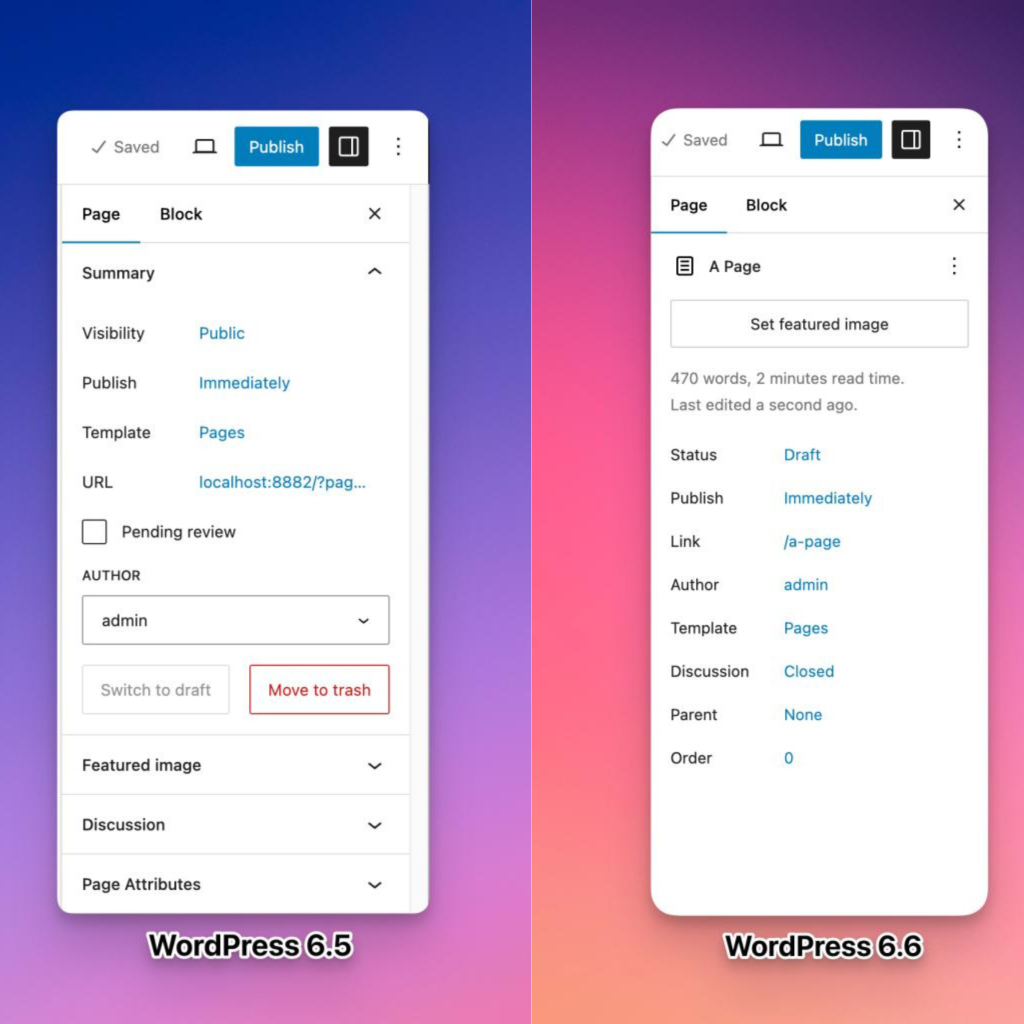
    The Site Editor has undergone a significant overhaul in recent releases, and WordPress 6.6 takes this further by introducing a more intuitive side-by-side layout for editing pages. This new view improves navigation, making it easier to manage and edit your content. The integration of pattern management is also smoother, reducing the number of clicks needed to access your desired tools and settings. Additionally, enhancements in keyboard navigation and bulk editing actions contribute to a more efficient workflow.

    Unified Publishing Flow

    Gone are the days of juggling between different interfaces for publishing posts and managing site content. WordPress 6.6 unifies the publishing flow, making interactions between different site elements much smoother. The updated layout now features more prominent displays for titles, publishing status, and featured images. For developers, this means an easier process for extending the editor, as both the post/page editor and Site Editor now share the same extensibility APIs. This not only streamlines development but also opens the door for more plugins to enhance your editing experience.

    Custom Content with Synced Patterns

    One of the most exciting new features is the ability to override synced patterns with custom content. This means you can now modify specific blocks within a pattern, such as changing the text or colors of a button CTA, while keeping the overall design consistent. You can enable these overrides from the “Advanced” section of various blocks like Paragraph, Heading, Buttons, and Image, with plans to expand this feature in the future.

    Automatic Plugin Rollbacks

    Plugin management just got a lot more reliable with automatic rollbacks. Previously, a failed plugin update could leave your site broken or parts of it non-functional. With WordPress 6.6, if an update fails, the plugin will automatically revert to its previous version, ensuring your site remains operational while you troubleshoot the issue.

    New Design Elements

    WordPress 6.6 introduces several new customization options to help you craft a visually appealing site:

    • Site Background Image: You can now set a site-wide background image with customizable size, position, and repetition options, allowing for a more personalized visual impact.
    • Negative Margins: For more precise design control, you can now set negative margins for any block. This feature facilitates overlapping elements and creative layouts, though negative values must be entered manually.
    • Grid Support: The new Grid and Grid Layout blocks let you create professional-looking grids for various types of content. The “Auto” option ensures responsive design, while the “Manual” option offers detailed control over rows and columns.
    • Custom Shadow Styles: From the Styles menu, you can now edit and create custom shadow styles for images, buttons, and more, giving you greater flexibility in your design.
    • Section-Specific Styles: Theme developers will appreciate the ability to define style variations for specific site sections, such as headers or footers. This feature requires editing the theme’s theme.json file but provides a powerful way to customize different parts of your site.

    Enhanced Block Bindings API

    The Block Bindings API, introduced in WordPress 6.5, has been upgraded for greater ease of use. This API allows you to connect the content of a block to custom field data. In WordPress 6.6, you can now update custom field data directly from the block editor, streamlining content management and making it easier to maintain data consistency across your site.

    Conclusion

    WordPress 6.6 is packed with features that enhance usability, creativity, and efficiency. Whether you’re looking to simplify your editing process, customize your site’s design, or ensure the reliability of your plugins, this update offers valuable tools and improvements. As always, keep an eye on the WordPress blog for more updates and tips, and happy WordPressing!

  •  How we built Reporters Club America Website

     How we built Reporters Club America Website

    Table of Content

    1) Introduction

    2) Development Process

       i) Planning and Requirement Analysis

       ii) Design and Prototype

       iii) Development

       iv) Integrating Plugins

       v) Testing

       vi) Deployment and Launch

    3) Conclusion

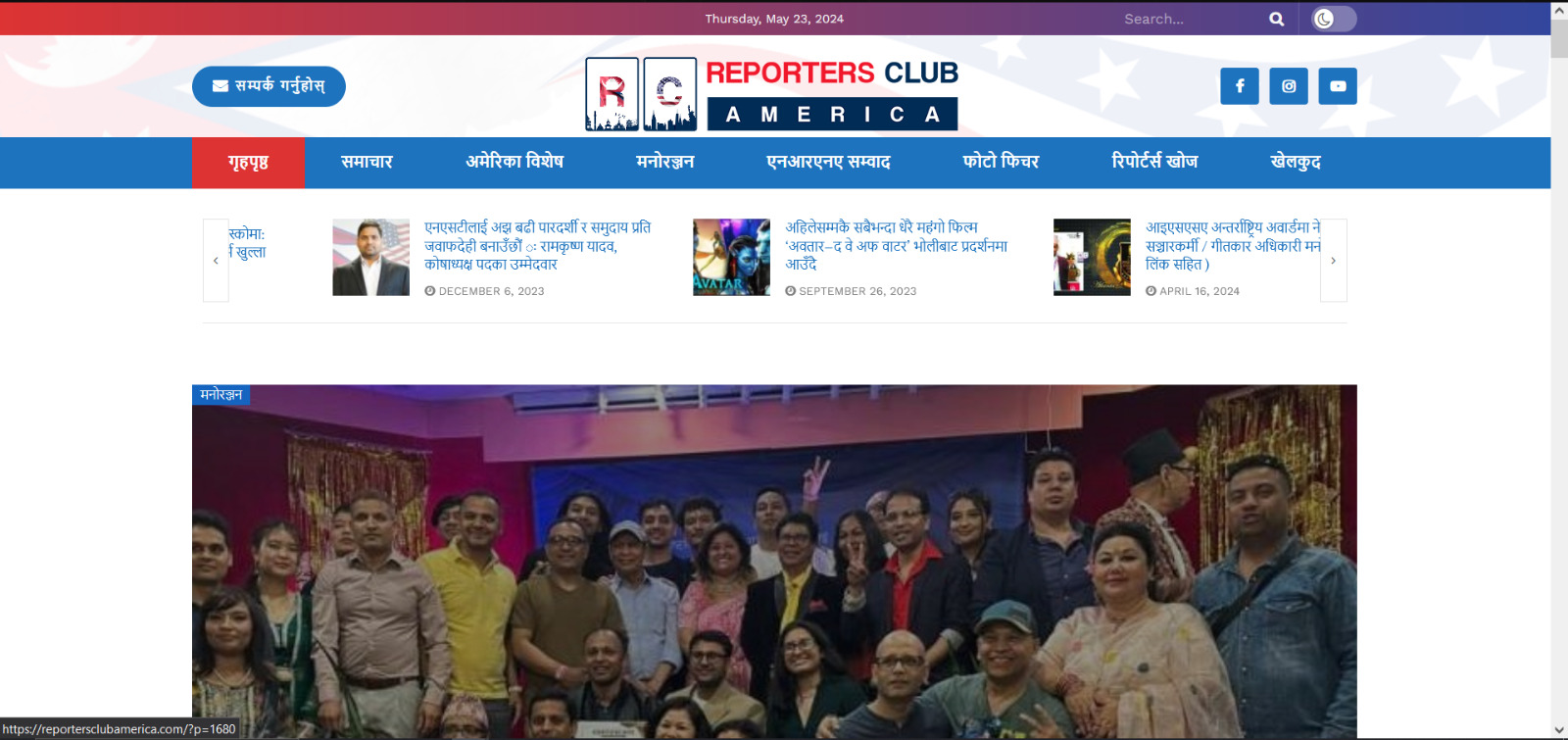
    Reporters Club America is an official platform that showcases news articles and blogs focusing on Nepal. Our goal was to create a website that is not only visually appealing but also functional and user-friendly. Utilizing WordPress and a range of plugins, we aimed to build a site that provides a seamless experience for readers and contributors alike.

    Our first step was to sit down with the Reporters Club America team to understand their vision and requirements for the website. Key objectives included:

    -A clean, professional design that reflects the journalistic integrity of the organization.

    -Easy navigation to access news articles, blogs, and categories.

    -Integration of SEO tools to enhance visibility.

    -Features for user engagement, including contact forms.

    With a clear understanding of the requirements, our design team began creating wireframes and prototypes. Using tools like Sketch and Adobe XD, we developed mockups that outlined the site’s layout and design. Key design elements included:

    -A homepage featuring the latest news and blog posts.

    -A categorized menu for easy navigation.

    -Responsive design to ensure compatibility with all devices.

    -Clean typography and a professional color scheme to enhance readability.

    Once the design was finalized, we moved on to the development phase. We chose WordPress for its flexibility and ease of use. The key development steps included:

    -Setting up a WordPress environment and installing the necessary plugins.

    -Customizing the JNews theme to match our design.

    -Creating custom post types for news articles and blogs.

    -Ensuring the site is mobile-friendly and fast-loading.

    To enhance the functionality and user experience of the website, we integrated several essential plugins:

    -JNews Theme: This theme was perfect for our needs, offering a range of features and customization options ideal for a news and blog site.

    -All in One SEO: To optimize the site for search engines, we used this powerful SEO plugin.

    -Contact Form 7: This plugin allowed us to create a user-friendly contact form for inquiries and feedback.

    -MC4WP: Mailchimp for WordPress: We integrated this plugin to manage newsletter sign-ups and email marketing.

    -Popup Box: Used for displaying popups for special announcements and promotions.

    -The Post Grid: This plugin enabled us to display posts in a grid layout, enhancing the visual appeal and organization of the content.

    Before launching, we conducted extensive testing to ensure everything worked perfectly. This involved:

    -Functionality Testing: Verifying that all features, including forms and popups, worked as intended.

    -Compatibility Testing: Ensuring the site performed well across various browsers and devices.

    -Performance Testing: Using tools like GTmetrix and Google PageSpeed Insights to optimize loading times and overall performance.

    -User Testing: Gathering feedback from a select group of users to identify and fix any usability issues.

    With testing complete, we moved on to the deployment phase. Key steps included:

    -Setting up the live hosting environment.

    -Migrating the website from the development environment to the live server.

    -Conducting a final round of testing on the live site.

    -Officially launching the site with announcements on Reporters Club America’s social media channels.

    Building the Reporters Club America website was a fulfilling project that combined creativity and technical skills. By leveraging WordPress and a suite of powerful plugins, we created a professional, user-friendly platform for news and blogs related to Nepal. We hope this walkthrough provides valuable insights into our development process and serves as inspiration for others embarking on similar projects.

    Visit Reporters Club America Website: https://reportersclubamerica.com